

UiPath UiPath-ADAv1 Real 2024 Braindumps Mock Exam Dumps
UiPath-ADAv1 Exam Questions | Real UiPath-ADAv1 Practice Dumps
NEW QUESTION # 34
A developer wants to run two processes on the same machine, the first process contains only HTTP Request activities and the second one performs UI Automation. What option needs to be enabled on the first process in order to ensure that the processes can run concurrently on the same machine?
- A. Attended Automation
- B. Starts in Background
- C. Supports Persistence
- D. Disable Pause
Answer: B
Explanation:
Explanation
The Starts in Background option is a property of the process that indicates whether the process can run in parallel with other processes on the same machine. If this option is enabled, the process can run as a background process, meaning that it does not require user interaction or UI automation. This allows the process to run concurrently with another process that performs UI automation, such as the second process in the question. The Starts in Background option can be configured in the project settings of the process in UiPath Studio, or in the process settings in Orchestrator.
References:
Background Process - UiPath Studio
Background Process Automation - UiPath Robot
Managing Processes - UiPath Orchestrator
NEW QUESTION # 35
The provided exhibit displays the representation of the "Deadline" field using the yyyy-mm-dd format.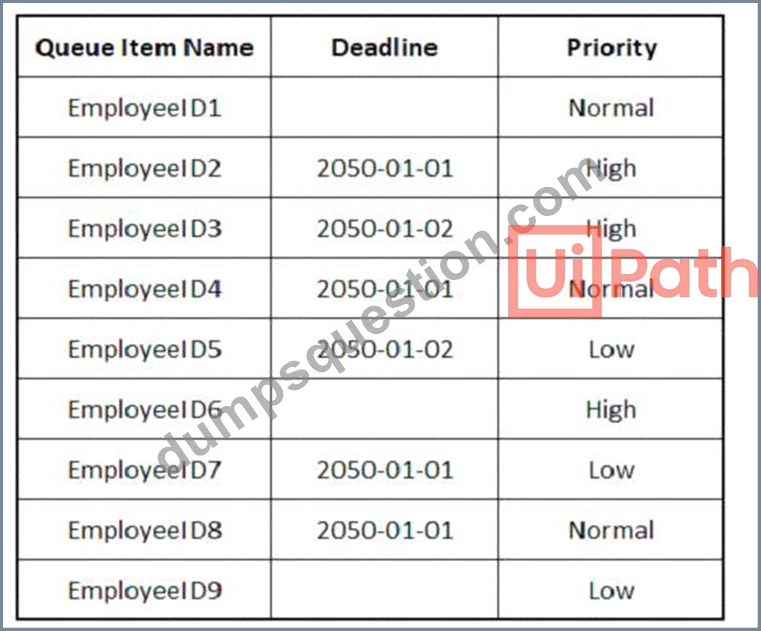
In what order should the Queue Items be processed by a single robot executing a Performer workflow?
Answer:
Explanation:
Explanation
The Queue Items should be processed by a single robot executing a Performer workflow in the following order:
EmployeeID1
EmployeeID4
EmployeeID8
EmployeeID3
EmployeeID6
EmployeeID9
EmployeeID5
EmployeeID2
EmployeeID7
A queue is a container that holds an unlimited number of items that can be processed by a robot1. A queue item can have a deadline and a priority, which affect the order in which the robot retrieves the items from the queue2. The Performer workflow is a part of the REFramework template that processes the queue items using the Get Transaction Item activity3. The order of queue execution is determined by the following rules4:
Items that have a deadline are processed first, in order of priority and according to the set deadline for items with the same priority.
Items that have no deadline are processed next, in order of priority and according to the rule First In, First Out for items with the same priority.
Based on these rules and the exhibit, the order of queue execution is as follows:
EmployeeID1 has the earliest deadline (2050-01-01) and high priority, so it is processed first.
EmployeeID4 has the same deadline as EmployeeID1, but normal priority, so it is processed second.
EmployeeID8 has the same deadline and priority as EmployeeID4, but it was added later to the queue, so it is processed third.
EmployeeID3 has the next earliest deadline (2050-01-02) and high priority, so it is processed fourth.
EmployeeID6 has the same deadline as EmployeeID3, but normal priority, so it is processed fifth.
EmployeeID9 has the same deadline and priority as EmployeeID6, but it was added later to the queue, so it is processed sixth.
EmployeeID5 has no deadline, but high priority, so it is processed seventh.
EmployeeID2 has no deadline and normal priority, so it is processed eighth.
EmployeeID7 has no deadline and low priority, so it is processed ninth.
References:
About Queues and Transactions documentation from UiPath
Processing Order documentation from UiPath
Performer documentation from UiPath
Order processing queue forum post from UiPath Community
NEW QUESTION # 36
Which of the following functionalities does UiPath Assistant provide?
- A. Scheduling and monitoring robot processes in Orchestrator.
- B. Developing automation workflows in UiPath Studio.
- C. Analyzing processes to determine optimal automation solutions.
- D. Running, managing, and organizing automation workflows on the user's machine.
Answer: D
Explanation:
Explanation
UiPath Assistant is a desktop tool that enables users to easily access, manage, and run automation workflows on their machines. It provides the following functionalities:
Viewing all the available automations that the user can run, either from Orchestrator or locally.
Adding automations to the launchpad for quick and easy access.
Creating custom folders and sections to organize the automations according to the user's preferences.
Running automations with a single click or using keyboard shortcuts.
Launching robot-powered apps and managing action center tasks directly from the assistant.
Customizing the assistant's appearance, name, and avatar to suit the user's personality.
Viewing the status and progress of the running automations, as well as the history and logs of the past executions.
Connecting to Orchestrator and synchronizing the automations and settings with the cloud.
Accessing the help and feedback options, as well as the interactive guided tour.
References:
Software Robot Assistant - Desktop Automation | UiPath
Robot - About UiPath Assistant - UiPath Documentation Portal
NEW QUESTION # 37
What is a pre-requisite for running functional test cases in REFramework?
- A. Invoke InitAllSettings XAML file
- B. Invoke SetTransactionStatus XAML file
- C. Invoke Main XAML file
- D. Invoke Process XAML file
Answer: A
Explanation:
Explanation
A pre-requisite for running functional test cases in REFramework is to invoke the InitAllSettings XAML file, which initializes the application, reads the configuration file, and sets the log level. This file is invoked in the Init state of the Main XAML file, which is the entry point of the REFramework. By invoking the InitAllSettings file, you can ensure that the test cases have access to the necessary settings and parameters for the automation project. (UiPath Studio - Testing Frameworks - UiPath Academy) References:
Studio - Testing Frameworks - UiPath Documentation Portal
UiPath Studio - Testing Frameworks - UiPath Academy
REFramework documentation.pdf - Google Drive
NEW QUESTION # 38
A project built using REFramework pulls phone numbers from a database of employees and creates queue items for each one. Following processing, these elements must be added to a financing application. The queue item holding a phone number becomes invalid if a digit is accidentally left out because of a human mistake. As a requirement, queue items that contain partial numbers should not be accepted.
What type of error should be thrown according to best practices?
- A. System Exception
- B. Application Exception
- C. Fatal Exception
- D. Business Exception
Answer: D
Explanation:
Explanation
A business exception is an exception that occurs due to a fault in the business process logic or data, such as invalid input, incorrect format, missing information, etc. Business exceptions are usually predictable and can be handled gracefully by logging the error and moving to the next transaction. In this case, a queue item that contains a partial phone number is an example of a business exception, as it is caused by a human mistake and does not affect the functionality of the application or system. (UiPath Automation Developer study guide) References:
Business Exception vs System Exception
Exception Handling
NEW QUESTION # 39
A developer configured the properties for a Click activity as shown below:
What happens if the activity cannot find its target at runtime?
- A. The next activity is executed after 10 seconds.
- B. The next activity is executed after 10 milliseconds.
- C. An exception is thrown after 10 milliseconds.
- D. An exception is thrown after 10 seconds.
Answer: D
Explanation:
Explanation
If the activity cannot find its target at runtime, an exception is thrown after 10 seconds. This is because the
"ContinueOnError" property is set to "False" and the "DelayAfter" property is set to "10" seconds. The
"ContinueOnError" property determines whether the automation should continue even when the activity fails, and the "DelayAfter" property specifies the amount of time (in milliseconds) to wait before moving to the next activity. (UiPath Automation Developer study guide) References:
Click
Common Properties
NEW QUESTION # 40
A developer is working with an application that allows all types of input methods for the Type Into activity.
Which property should be enabled for the fastest execution?
- A. Click before typing
- B. Empty field
- C. Simulate
- D. Window Messages
Answer: C
Explanation:
Explanation
The Simulate option is a property of the Type Into activity that enables the fastest execution of the activity.
This is because the Simulate option does not rely on the hardware drivers or the UI elements to perform the typing action. Instead, it uses the technology of the target application to directly inject the text as a stream of characters. This makes the Simulate option faster, more reliable, and more compatible than the other input methods. The Simulate option also allows the activity to run in the background, meaning that it does not require the application to be in focus or visible.
References:
Type Into - UiPath Activities
Input Methods - UiPath Studio
UiPath Type Into Activity: Step-by-Step Guide with Examples - RPA Tutorial
NEW QUESTION # 41
Which Control Flow activity is suitable for a developer who needs to assess the value of a counter before executing the loop's body in a workflow?
- A. )While
- B. Do While
- C. If
- D. Switch
Answer: A
Explanation:
Explanation
The While activity is a Control Flow activity that enables the developer to execute a specified part of the automation while a condition is met. The condition is evaluated before the loop body is executed, which means that the developer can assess the value of a counter or any other variable before performing the actions inside the loop. This type of activity can be useful to iterate through an array, a list, a data table, or any other collection of data, or to repeat an action until a certain value is reached or changed. The While activity can be found in the Activities panel, under Workflow > Control.
References:
While - UiPath Activities
While Activity - UiPath Studio
UiPath While Loop Tutorial with Examples - RPA Tutorial
NEW QUESTION # 42
A developer is using the REFramework template to automate a process. In "SetTransactionStatus" file, there is the following sequence of activities, where the last Log Message activity was added by the developer:
The configuration for Add Log Fields and Remove Log Fields activities are shown below:
Add transaction log fields (Success)

The developer runs the process and notices the argument values for the first transaction are:
in_TransactionlD = "07/18/2023 10:27:29"
io_TransactionNumber = 1
in_TransactionField1 = "UI235-80"
in_TransactionField2 = "Update Request"
Which of the following Log Message Details will be displayed when executing the activity Log Message Completed for the first transaction, considering it is successful?
- A. "message": "Transaction Completed",
"level": "Information",
"logType": "User",
"timeStamp": "10:30:19",
"fileName": "SetTransactionStatus",
"processVersion": "1.0.0",
"jobId": "59325301-680a-4d55-a81b-56ca1f369c12",
"robotName": "test.robot",
"machineId": 0,
"logF_TransactionField2": empty,
"logF_TransactionStatus": empty,
"logF_TransactionID": empty,
"logF_BusinessProcessName": "Framework",
"logF_TransactionNumber": empty,
"logF_TransactionField1": empty
} - B. "message": "Transaction Completed",
"level": "Information",
"logType": "User",
"timeStamp": "10:30:19",
"fileName": "SetTransactionStatus",
"processVersion": "1.0.0",
"jobId": "cb865477-35f8-4c0a-93e9-e4f4246223f2",
"robotName": "test.robot",
"machineId": 0,
"logF_TransactionField2": "Update Request",
"logF_TransactionID": "07/18/2023 10:27:29",
"logF_BusinessProcessName": "Framework",
"logF_TransactionNumber": "1",
"logF_TransactionField1": "UI235-80",
"logF_TransactionStatus": "Success" - C. "message": "Transaction Completed",
"level": "Information",
"logType": "User",
"timeStamp": "10:30:19",
"fileName": "SetTransactionStatus",
"processVersion": "1.0.0",
"jobId": "f8a36a46-8ebc-40df-8f71-26b39087ebee",
"robotName": "test.robot",
"machineId": 0,
"logF_BusinessProcessName": "Framework"
} - D. "message": "Transaction Completed",
"level": "Information",
"logType": "User",
"timeStamp": "10:30:19",
"fileName": "SetTransactionStatus",
"processVersion": "1.0.0",
"jobId": "59325301-680a-4d55-a81b-56ca1f369c12",
"robotName": "test.robot",
"machineId": 0,
"logF_TransactionField2": ""
"logF_TransactionStatus":
"logF_TransactionID"; "",
"logF_BusinessProcessName": "Framework",
"logF_TransactionNumber": ""
"logF_TransactionField1":
}
Answer: B
Explanation:
Explanation
The Log Message activity is used to write a diagnostic message at a specified level to the output panel, the log file, and Orchestrator1. The message can include custom log fields that are added by the Add Log Fields activity and removed by the Remove Log Fields activity2. In this case, the developer has added six log fields in the Add transaction log fields (Success) sequence and removed three of them in the Remove transaction log fields sequence. Therefore, the remaining three log fields (logF_TransactionField2, logF_TransactionID, and logF_TransactionStatus) will be displayed along with the default log fields (message, level, logType, timeStamp, fileName, processVersion, jobId, robotName, and machineId) when executing the Log Message Completed activity. The values of the log fields will be taken from the corresponding arguments of the Set Transaction Status activity.
References:
Add Log Fields activity documentation from UiPath
Remove Log Fields activity documentation from UiPath
Log Message activity documentation from UiPath
NEW QUESTION # 43
Which command in the UiPath installation folder configures the UiPath.RemoteDebugging.Agent utility on a Windows robot to accept remote debugging requests from Studio?
- A. UiPath.Remote Debugging.Agent.exe start -- port -- password -- verbose
- B. UiPath.Remote Debugging.Agent.exe enable -- port -- password -- verbose
- C. dotnet ./UiPath.RemoteDebugging.Agent.dll enable -- port -- password -- verbose
- D. UiPath.Remote Debugging.Agent.exe enable -- port -- username -- password -- verbose
Answer: B
Explanation:
Explanation
The UiPath.RemoteDebugging.Agent utility is a tool that enables remote debugging on a Windows robot1. To configure the utility to accept remote debugging requests from Studio, you need to run a command in the UiPath installation folder using the Command Prompt2. The command is:
UiPath.RemoteDebugging.Agent.exe enable --port <port_number> --password <password> --verbose The arguments in the command are:
--port <port_number>: Specify the port number to use for the remote debugging connection. The default value is 80803.
--password <password>: Specify the password to use for the remote debugging connection. The password must match the one entered in Studio when creating a Remote Machine Connection.
--verbose: Enable verbose logging for the utility. This argument is optional.
Therefore, option D is the correct command to configure the UiPath.RemoteDebugging.Agent utility on a Windows robot to accept remote debugging requests from Studio. Option A is incorrect because it uses dotnet instead of exe, which is only applicable for macOS robots. Option B is incorrect because it uses start instead of enable, which is only used to start the utility after it is configured. Option C is incorrect because it uses username instead of password, which is not required for the remote debugging
NEW QUESTION # 44
What represents a sequence that contains an activity with a partial selector?
- A.

- B.

- C.

- D.

Answer: B
Explanation:
Explanation
A partial selector is a selector that does not contain the information about the top-level window. A partial selector is usually generated when a UI Automation activity is included in a container activity, such as Attach Browser or Attach Window, that has a full selector of the outer window. This way, the UI Automation activity can use the partial selector relative to the container, instead of the full selector from the root. A partial selector is indicated by the icon in the Properties panel of the UI Automation activity. In this question, the sequence that contains an activity with a partial selector is Option B, where the Click activity has the partial selector icon and is enclosed in an Attach Window activity. The other options have activities with full selectors, indicated by the icon . Therefore, the answer is B. Option B. References: Full Versus Partial Selectors, Selectors
NEW QUESTION # 45
A developer wants to create a process which runs in the background and uses Excel activities Which property of the Excel Application Scope activity must be configured for the process to run in the background?
- A. Save changes
- B. Visible
- C. Private
- D. Read-only
Answer: B
Explanation:
Explanation
The Visible property of the Excel Application Scope activity determines whether the Excel file is opened in the foreground or in the background. If the Visible property is set to True (default value), the Excel file is opened and displayed on the screen. If the Visible property is set to False, the Excel file is opened and processed in the background, without showing the user interface. This can improve the performance and speed of the automation, as well as avoid any interference with the user's work. Therefore, to create a process that runs in the background and uses Excel activities, the Visible property of the Excel Application Scope activity must be configured to False. References: Excel Application Scope from UiPath documentation.
NEW QUESTION # 46
What is the purpose of the Invoke Code activity in UiPath?
- A. Invokes VB.NET code, optionally passing it a list of input arguments.
- B. Invokes VB.NET or C# code, optionally passing it a list of input arguments.
- C. Invokes VB.NET or Java code, optionally passing it a list of input arguments.
- D. Invokes Java code, optionally passing it a list of input arguments.
Answer: B
Explanation:
Explanation
The Invoke Code activity in UiPath is an activity that allows developers to execute custom code written in VB.NET or C# within a workflow. The activity can accept a list of input arguments and return a list of output arguments, which can be used to exchange data between the code and the workflow. The activity can also access the variables and arguments defined in the current scope of the workflow. The Invoke Code activity can be useful for scenarios where the existing activities do not meet the specific requirements or logic of the automation process. (UiPath Automation Developer study guide) References:
Invoke Code
How To Use Invoke Code Activity - In UiPath
NEW QUESTION # 47
During a code review, a developer discovered that the variable names did not follow best practices in an automation project. What happens when the developer updates the names of the variables in the Variables panel?
- A. Variable names are updated in the panel but must be manually updated in all Image activities that use them
- B. Only String variable names are automatically updated in the activities in the current file
- C. All variable names are automatically updated in the activities in the current file
- D. Variable names are updated in the panel but must be manually updated in all Ul Automation activities that use them
Answer: C
Explanation:
Explanation
The Variables panel is a panel in UiPath Studio that allows you to create and manage variables in a workflow file. You can change the name, type, scope, and default value of a variable in the Variables panel. When you update the name of a variable in the Variables panel, all the activities that use that variable in the current file are automatically updated with the new name. This ensures that the variable references are consistent and valid throughout the workflow. However, if the variable is used in other workflow files, such as invoked workflows or libraries, you need to manually update the name in those files as well. Therefore, the answer is C. All variable names are automatically updated in the activities in the current file. References: Managing Variables, Variables
NEW QUESTION # 48
You want to identify a selector in a Type into activity that will be used for a text input field within an application. In order for the Type into activity to execute as expected, how many elements in an application can a selector be valid for at runtime?
- A. 5 elements
- B. 1 element
- C. 2 elements
- D. 3 elements
Answer: B
Explanation:
Explanation
A selector is a string of characters (XML fragment) that identifies a UI element uniquely within the UI hierarchy. A selector must be valid for only one element in an application, otherwise the Type into activity will not be able to find the correct target for typing the text. If a selector is valid for more than one element, it is considered ambiguous and unreliable. Therefore, the answer is A. 1 element. References: Selectors, Type Into
NEW QUESTION # 49
What actions must be manually selected in the App/Web Recorder before recording a step?
- A. Copy text using the Get Text activity.
Hover over an element using the Hover activity.
Highlight an element using the Highlight activity. - B. Copy text using the Get Text activity.
Hover over an element using the Hover activity.
Click on buttons, links, and other clickable elements such as icons or images.
Type text in a text area such as a text box.
Select or clear a check box. - C. Select or clear a check box.
Send keyboard shortcuts using your keyboard.
Select an item from a drop-down. - D. Click on buttons, links, and other clickable elements such as icons or images.
Type text in a text area such as a text box.
Select or clear a check box.
Send keyboard shortcuts using your keyboard.
Select an item from a drop-down.
Answer: A
Explanation:
Explanation
The App/Web Recorder is a tool that allows you to record your actions on an application or a web browser and generate activities automatically1. The App/Web Recorder has a toolbar that contains different actions that you can select before recording a step2. Some of these actions are:
Click: This action records a click on a button, link, or any other clickable element.
Type: This action records typing text in a text box or any other text area.
Check: This action records selecting or clearing a check box.
Send Hotkey: This action records sending keyboard shortcuts using your keyboard.
Select Item: This action records selecting an item from a drop-down list or any other selector.
These actions are automatically detected and recorded by the App/Web Recorder when you perform them on the application or web browser3. However, there are some actions that are not automatically detected and recorded by the App/Web Recorder, and you need to manually select them from the toolbar before recording a step. These actions are:
Get Text: This action records copying text from a label, paragraph, or any other text element.
Hover: This action records hovering over an element with your mouse cursor.
Highlight: This action records highlighting an element with a colored border.
These actions are useful for extracting data, triggering events, or identifying elements on the application or web browser4. To use these actions, you need to select them from the toolbar and then indicate the element on the screen that you want to apply them to5.
Therefore, option A is the correct answer, as it lists the actions that must be manually selected in the App/Web Recorder before recording a step. Option B includes some actions that are automatically detected and recorded by the App/Web Recorder, such as Click and Type. Option C also includes some actions that are automatically detected and recorded by the App/Web Recorder, such as Check and Send Hotkey. Option D includes all the actions that are automatically detected and recorded by the App/Web Recorder.
NEW QUESTION # 50
When encountering an ApplicationException, what occurs if the developer chooses InvalidOperationException as the exception handler within the Catches section of the Try Catch activity?
- A. The Finally block is executed and the Catches section catches the exception.
- B. No exceptions are happening and the workflow continues to execute.
- C. A runtime error occurs and the Finally block is not executed.
- D. No exception is thrown and the Finally block executes.
Answer: C
Explanation:
Explanation
The Try Catch activity is used to handle errors and exceptions that may occur during the execution of a workflow1. It has three sections: Try, Catches, and Finally1.
The Try section contains the activities that may throw an exception or an error. If an exception or an error occurs, the execution of the Try section is stopped and the control is passed to the Catches section1.
The Catches section contains one or more exception handlers that specify what type of exception or error to catch and what actions to perform when it is caught. The exception handlers are executed in order, from top to bottom, until a matching exception or error is found. If no matching exception or error is found, the execution of the workflow is stopped and a runtime error is thrown1.
The Finally section contains the activities that are always executed at the end of the Try Catch activity, regardless of whether an exception or error occurred or not. The Finally section is used to perform cleanup actions, such as closing applications, releasing resources, or logging messages1.
In your case, you have configured the properties for the Try Catch activity as follows:
The Try section contains a Throw activity with an ApplicationException.
The Catches section contains an InvalidOperationException with a Message Box activity and a Log Message activity.
The Finally section is empty.
This means that the Try Catch activity will throw an ApplicationException in the Try section and look for a matching exception handler in the Catches section. However, since you have chosen InvalidOperationException as the exception handler, which does not match the ApplicationException, the execution of the workflow will be stopped and a runtime error will occur. The Finally section will not be executed.
Therefore, option B is correct.
References: Try Catch - UiPath Documentation Portal.
NEW QUESTION # 51
A developer is automating the process of entering sensitive information into text input fields that are constantly changing their position. Each text input field has a corresponding text label. The developer decides to automate the process by using Modern UI Activities with anchors.
Which activities should be used?
- A. Find Text Position activity as the anchor and Set Text activity as the action.
- B. Type Into activity with a valid anchor and the input text provided in the Text property.
- C. Find Text Position activity as the anchor and Type Secure Text activity as the action.
- D. Type Into activity with a valid anchor and the input text provided in the Secure Text property.
Answer: C
Explanation:
Explanation
The Find Text Position activity is used to find the position of a text on the screen and return it as a UiElement variable. This can be used as an anchor to locate the text input field that corresponds to the text label. The Type Secure Text activity is used to type a password or other sensitive information into a UI element, without revealing the actual text. The input text is provided as a SecureString variable, which is encrypted and cannot be viewed in plain text. This ensures that the sensitive information is entered securely and accurately into the text input field.
References:
Find Text Position - UiPath Activities
Type Secure Text - UiPath Activities
UiPath Anchor Base Tutorial & AnchorPosition Example
NEW QUESTION # 52
What describes how the Excel Application Scope activity interacts with a Microsoft Excel file?
- A. Works only with xlsm files and Excel must be installed
- B. Works with xls and xlsm files and Excel must be installed
- C. Works only with xls files and Excel does not need to be installed
- D. Works with xlsx files and Excel does not need to be installed
Answer: B
Explanation:
Explanation
The Excel Application Scope activity interacts with a Microsoft Excel file in the following way: it works with xls and xlsm files and Excel must be installed. The Excel Application Scope activity opens an Excel workbook and provides a scope for Excel activities. When the execution of this activity ends, the specified workbook and the Excel application are closed2. The Excel Application Scope activity can work with xls (Excel 97-2003 Workbook) and xlsm (Excel Macro-Enabled Workbook) file formats3. However, the Excel Application Scope activity requires Microsoft Excel to be installed on the machine where the automation is running, as it uses the Excel interop assembly4. Therefore, the Excel Application Scope activity cannot work with xlsx (Excel Workbook) files or without Excel installed.
References: Excel Application Scope, File formats that are supported in Excel, and Excel Application Scope - UiPath Activities Guide from UiPath documentation and Microsoft support.
NEW QUESTION # 53
......
Verified UiPath-ADAv1 Exam Dumps Q&As - Provide UiPath-ADAv1 with Correct Answers: https://www.dumpsquestion.com/UiPath-ADAv1-exam-dumps-collection.html
Pass Your UiPath-ADAv1 Dumps Free Latest UiPath Practice Tests: https://drive.google.com/open?id=17HOiVRijxDjz94i36gzEfeebb4ZpDujU